Sticky Notes#
Sticky Notes allow you to annotate and comment on your workflows.
n8n recommends using Sticky Notes heavily, especially on template workflows, to help other users understand your workflow.
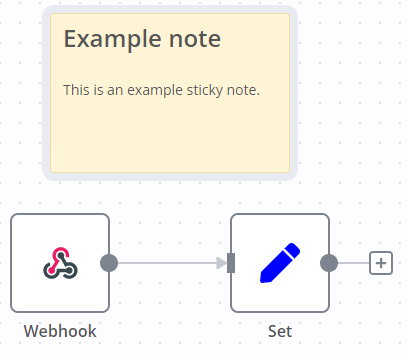
Create a Sticky Note#
Sticky Notes are a core node. To add a new Sticky Note:
- Open the nodes panel.
- Search for
note. - Click the Sticky Note node. n8n adds a new Sticky Note to the canvas.
Edit a Sticky Note#
- Double click the Sticky Note you want to edit.
- Write your note. This guide explains how to format your text with Markdown. n8n uses markdown-it, which implements the CommonMark specification.
- Click away from the note, or press
Esc, to stop editing.
Change the color#
To change the Sticky Note color:
- Hover over the Sticky Note
- Select Change color

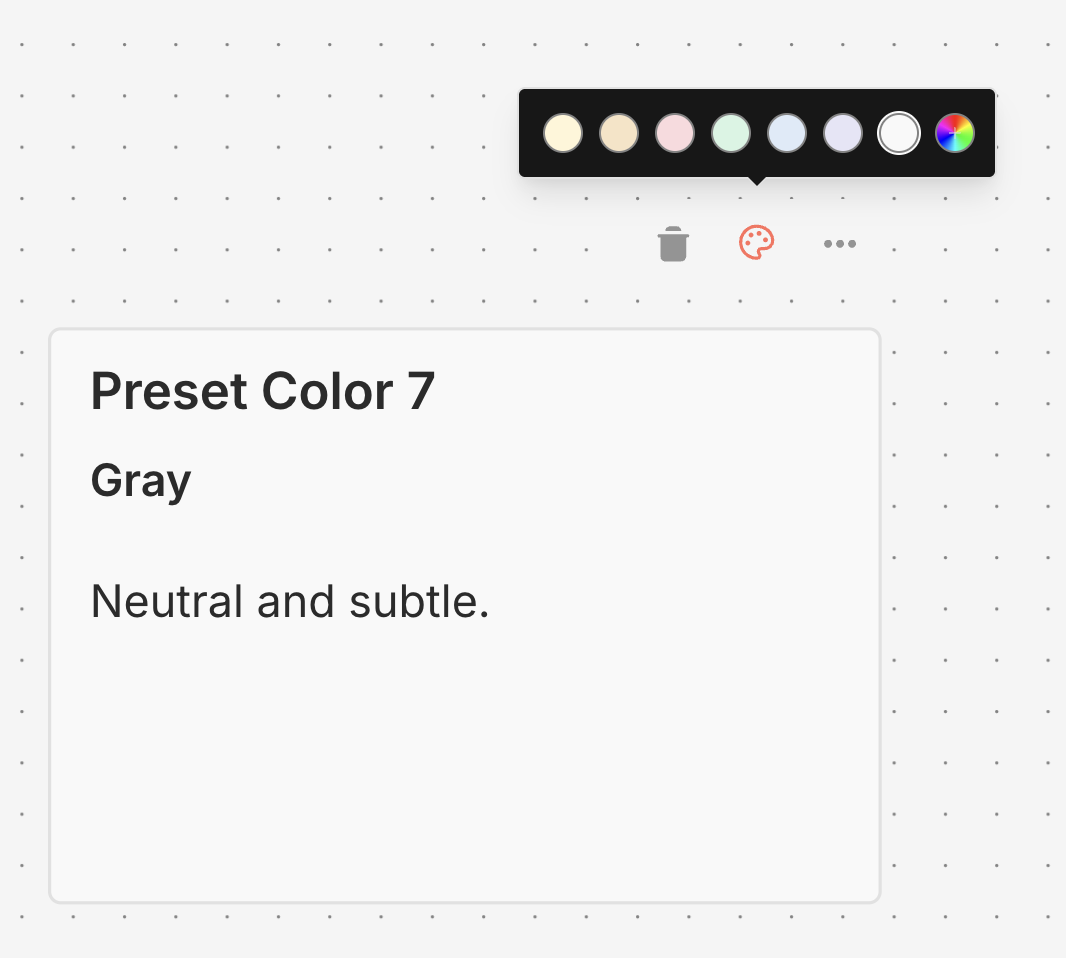
- Choose from 7 preset colors, or click the rainbow gradient button to select a custom color
Custom colors#
In addition to the 7 preset colors, you can select any custom color for your sticky notes:
- Click the 8th button with the rainbow gradient and plus icon
- Use the color picker to select your desired color, or enter a hex color code (for example,
#FF5733) - Click Apply to set the color
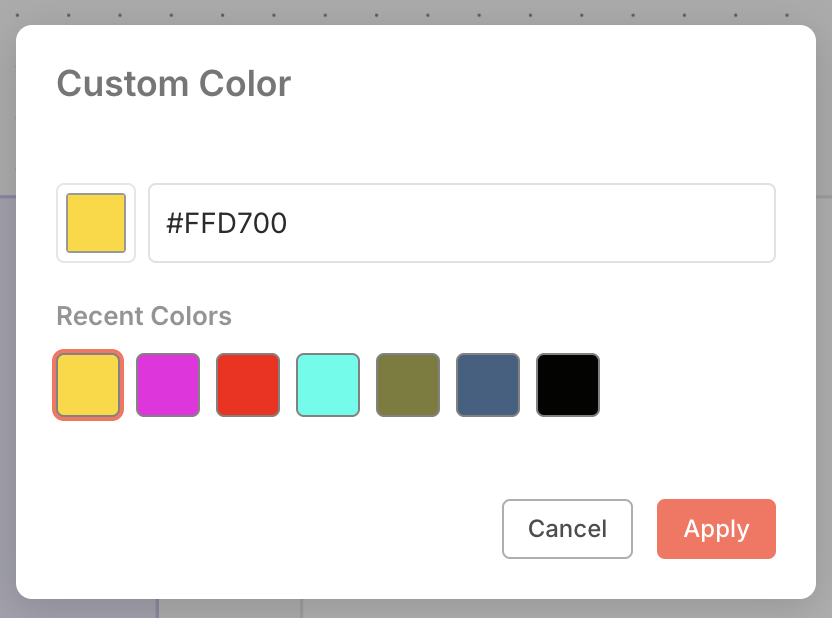
Your recently used custom colors (up to 8) are automatically saved and displayed in the color picker for quick access.
Custom colors feature theme-aware borders that automatically adjust for optimal visibility in both light and dark modes.
Sticky Note positioning#
You can:
- Drag a Sticky Note anywhere on the canvas.
- Drag Sticky Notes behind nodes. You can use this to visually group nodes.
- Resize Sticky Notes by hovering over the edge of the note and dragging to resize.
- Change the color: select Options
 to open the color selector.
Writing in Markdown#
Sticky Notes support Markdown formatting. This section describes some common options.
1 2 3 4 5 6 7 8 9 10 11 12 13 14 15 16 17 18 19 20 21 | |
For a more detailed guide, refer to CommonMark's help. n8n uses markdown-it, which implements the CommonMark specification.
Make images full width#
You can force images to be 100% width of the sticky note by appending #full-width to the filename:
1 | |
Embed a YouTube video#
To display a YouTube video in a note, use the @[youtube](<video-id>) directive with the video's ID. For this to work, the video's creator must allow embedding.
For example:
1 | |
To embed your own video, copy the above syntax, replacing ZCuL2e4zC_4 with your video ID. The YouTube video ID is the string that follows v= in the YouTube URL.